Guided Setup (Wizard)
The guided setup is an alternative way to create a trip. Instead of filling a single form, it walks you through three steps: the trip basics with its stages, an optional AI day-by-day plan, and an optional accommodation search.
It is designed for trips you haven't planned yet. If you already know exactly what you want, the standard setup is faster.
Before You Start
Requires your own AI key
The guided setup is offered only to users who have configured their own AI API key in their profile. If you don't have one, the Create a new trip button opens the standard form directly and no guided option appears.
A key shared with you by a trip author is not enough — the wizard needs a key of your own.
Both supported providers have a free tier: create a key at Google AI Studio or in the Mistral console, then paste it into Account Settings → AI suggestions. Step-by-step instructions are in Getting a Free API Key.
Starting the Wizard
- On the homepage, click Create a new trip
- Choose Guided setup from the dropdown
The other entry, Standard setup, opens the classic single-form modal.
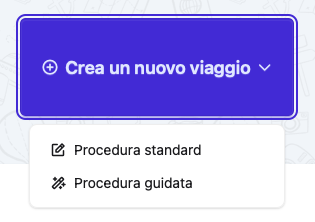 Choosing between standard and guided setup
Step 1: Basics
This is the only mandatory step: it creates the trip.
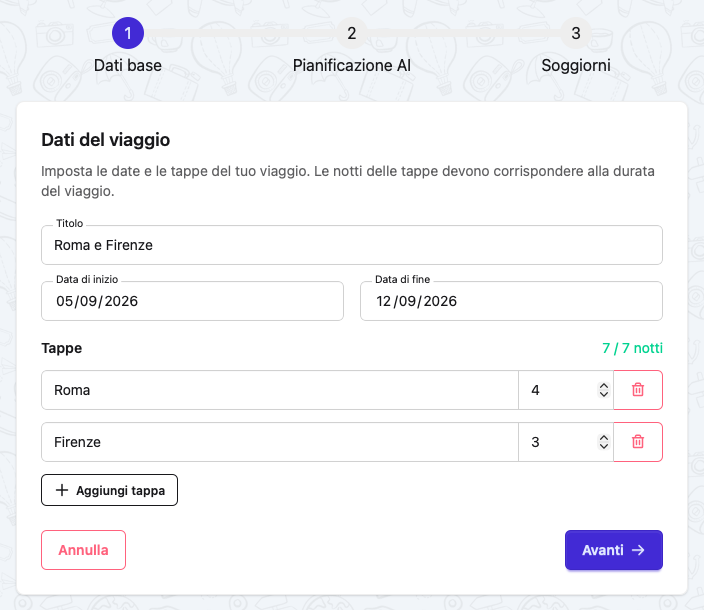 The Basics step with two stages
Fill in:
- Title — the name of the trip (max 100 characters)
- Start date and End date
- Stages — one or more destinations, each with a number of nights
Stages
A stage is a destination you sleep at, with the number of nights you spend there. Add one row per destination:
- Click Add stage to append a row
- Click the trash icon to remove one (the first stage cannot be removed)
- The first stage is the trip's main destination and is what appears on the trip card
The counter next to the Stages heading shows nights used / trip duration. It turns green when the two match.
Nights must match the duration
The sum of nights across all stages must equal the trip duration. A trip from 1 June to 8 June is 7 nights, so Rome 4 + Florence 3 is valid, while Rome 4 + Florence 2 is rejected with "The nights across stages must match the trip duration."
Each stage also needs a destination and at least one night.
How Stages Become Days
When you click Next, the trip and its days are created, and each stage is assigned to a consecutive block of days based on its nights.
The last stage absorbs the departure day, because a trip always has one more day than nights. With Rome 4 + Florence 3 over 8 days:
| Days | Stage |
|---|---|
| 1–4 | Rome |
| 5–8 | Florence |
Each day carries its stage's destination, which is what the AI planning step and the weather forecast use.
The draft is saved here
From this point the trip exists as a draft. If you close the browser, you can resume it from the homepage — nothing is lost.
Step 2: AI Day Planning
Optional. The AI drafts a plan for the whole trip in one pass, and you decide day by day what to keep.
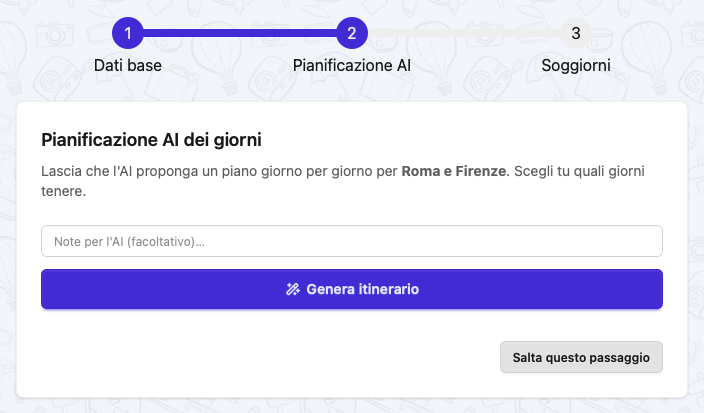 The AI planning step before generating
- Optionally type notes for the AI (max 500 characters) — for example "travelling with two kids, no museums in the afternoon"
- Click Generate itinerary
- Review the proposed days
Each day is a card showing the day number, its destination, the number of stops and the list of proposed stops with their estimated duration. Stops are icon-coded: a fork and knife for meals, a pin for experiences.
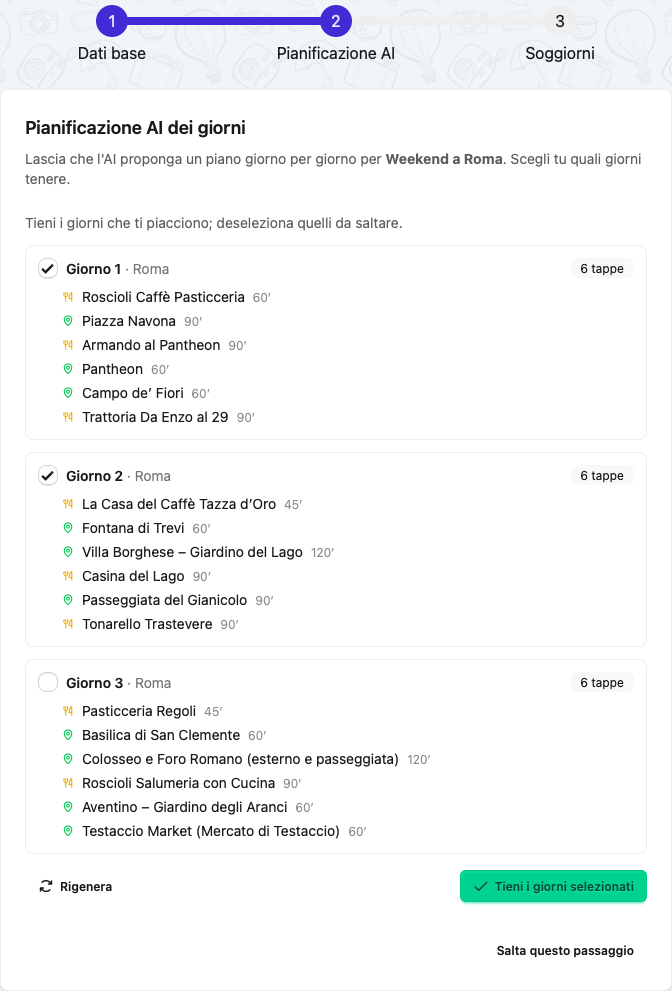 A generated itinerary ready for review, with day 3 unchecked so it won't be applied
Keeping and Discarding
- Every day with at least one stop is checked by default
- Uncheck any day you don't want
- Days with no proposed stops are shown but cannot be selected
- Click Regenerate to ask for a completely new plan (this ignores the cached result)
- Click Keep selected days to apply them
Kept stops are added to their day — nothing that already exists is replaced. Discarded days are simply left empty for you to fill in later.
You can skip this entirely
Click Skip this step to go straight to Stays. You can still use AI planning later, one day at a time, from the trip detail page — see AI Suggestions.
If Generation Fails
The step degrades gracefully and always lets you continue:
| Message | Meaning |
|---|---|
| AI planning is not configured yet | The API key is missing or invalid — a link to your AI settings is shown |
| You have reached the AI provider usage limit | Your provider quota is exhausted; try later |
| You have reached the daily AI generation limit | The app's own daily cap was hit; try tomorrow |
| Something went wrong… | Any other error — retrying often works |
Step 3: Stays
Optional. For each stage of the trip you can search accommodation for the exact dates of that stage.
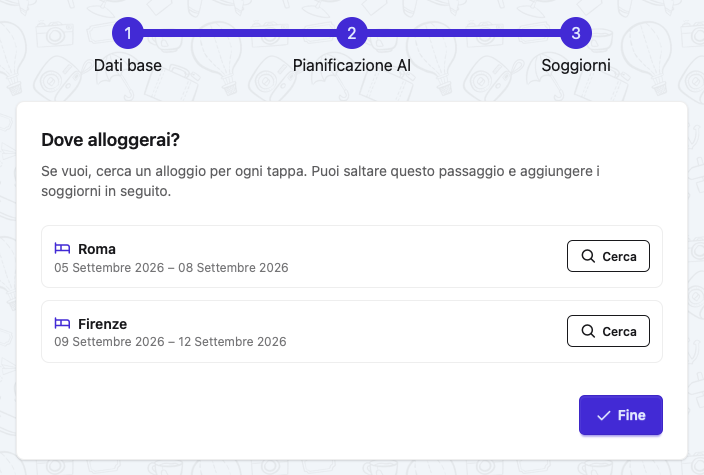 The Stays step, one row per stage
Each row shows the stage destination and its date range. Click Search to open the accommodation search for that stage, pre-filled with destination and dates. See the Stays guide for how the search works.
No booking is recorded here
The search opens an external accommodation provider. Nothing is saved to your trip automatically — add the stay to Organize It once you've booked.
If accommodation search is not configured on your instance, the step shows "Accommodation search is currently unavailable." and you can simply finish.
Click Finish to complete the wizard and land on your trip.
Cover Image
If you didn't provide a cover image during the wizard, one is selected automatically from Unsplash based on your main destination when you click Finish.
Auto-selected covers carry a small wand badge in the top-left corner of the image, so you can tell them apart from the ones you chose yourself.
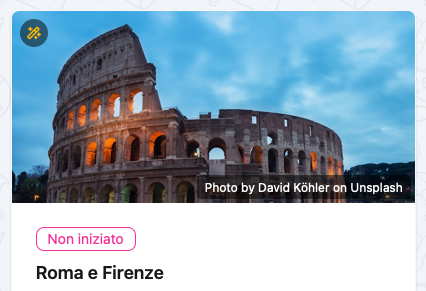 The badge marking an automatically selected cover
The selection runs in the background, so the image may appear a few seconds after the trip page loads. If no suitable photo is found, the usual placeholder is shown. You can replace the cover at any time by editing the trip.
Drafts: Resume, Discard, Leave
A trip created through the wizard stays a draft until you click Finish.
Resuming
An unfinished draft appears as a card on the homepage and in the trips list, marked with a Draft badge:
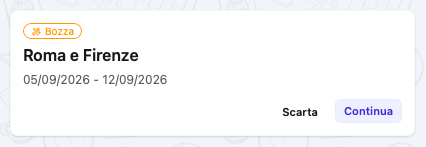 An unfinished draft on the homepage
- Continue reopens the wizard at the step you left it on
- Discard deletes the draft and everything in it
Only one draft at a time
The homepage surfaces a single draft. Finish or discard it before starting another guided setup.
Leaving the Wizard
If you click a link that navigates away from the wizard, a confirmation dialog appears. Its wording depends on how far you got:
- Before the Basics step is submitted: "You haven't saved anything yet: leaving will discard your entries."
- After the draft exists: "Your draft is saved. You can resume it later from the home page."
Choose Stay to go back, or Leave to navigate away.
Cancelling
- On the Basics step, Cancel returns home without creating anything
- Later, Discard on the draft card deletes the draft trip, its days and any events the AI added
Discarding is permanent
Discarding a draft deletes the trip and all its content. There is no undo.
Guided vs. Standard Setup
| Guided setup | Standard setup | |
|---|---|---|
| Requires your own AI key | Yes | No |
| Multiple destinations | Yes, as stages | One destination |
| AI itinerary | Whole trip in one pass | One day at a time, later |
| Accommodation search | Per stage, in-flow | From the trip page |
| Cover image | Auto-selected if omitted | You choose it |
| Best for | A trip you haven't planned yet | A trip whose details you already know |
Both produce an ordinary trip: nothing created by the wizard behaves differently afterwards.
Frequently Asked Questions
Why don't I see the guided setup option?
You don't have your own AI API key configured. Add one from your profile — see AI Suggestions.
Can I change the stages after finishing?
Not as stages. Once the wizard completes, the trip is an ordinary trip: you edit each day's destination individually from the trip detail page.
Does the AI step overwrite what's already there?
No. Kept stops are added to their day alongside anything already present.
What happens if I close the browser mid-wizard?
Nothing is lost as long as you completed the Basics step. The draft is waiting on your homepage.
Can I go back to a previous step?
Not directly. Leaving and resuming reopens the draft at the furthest step you reached. To change the basics, finish the wizard and edit the trip normally.
Related Guides
- Trips - Standard trip creation and management
- AI Suggestions - Per-day AI planning and API keys
- Stays - Accommodations and booking search
- Days - Day organization and destinations
Next: Learn about organizing your trip by days