Quick Start Guide
Get up and running with Organize It in 5 minutes!
What is Organize It?
Organize It is a web application designed to help you plan and organize your trips. Whether you're planning a weekend getaway or a month-long adventure, Organize It helps you keep track of:
- Accommodations (Stays)
- Activities (Experiences)
- Restaurants (Meals)
- Transportation (Transfers)
- Important links and notes
Core Concepts
Trips
A Trip is the main container for your travel plans. Each trip has:
- Start and end dates
- A cover image
- A collection of days (auto-generated from dates)
- Events organized by day
Days
Days are automatically created based on your trip dates. Each day can contain:
- Multiple events (experiences, meals, transfers)
- One accommodation (stay)
Events
Events are the activities in your itinerary. There are three types:
- Stays - Hotels, apartments, hostels
- Experiences - Museums, tours, walks, attractions
- Meals - Restaurants, cafes, food experiences
- Transfers - Flights, trains, car rentals, moving between locations
Your First Trip in 5 Minutes
Step 1: Create an Account
- Navigate to http://localhost:8000
- Click Sign Up
- Enter your email and password
- Verify your email (in development, check the console)
- Log in
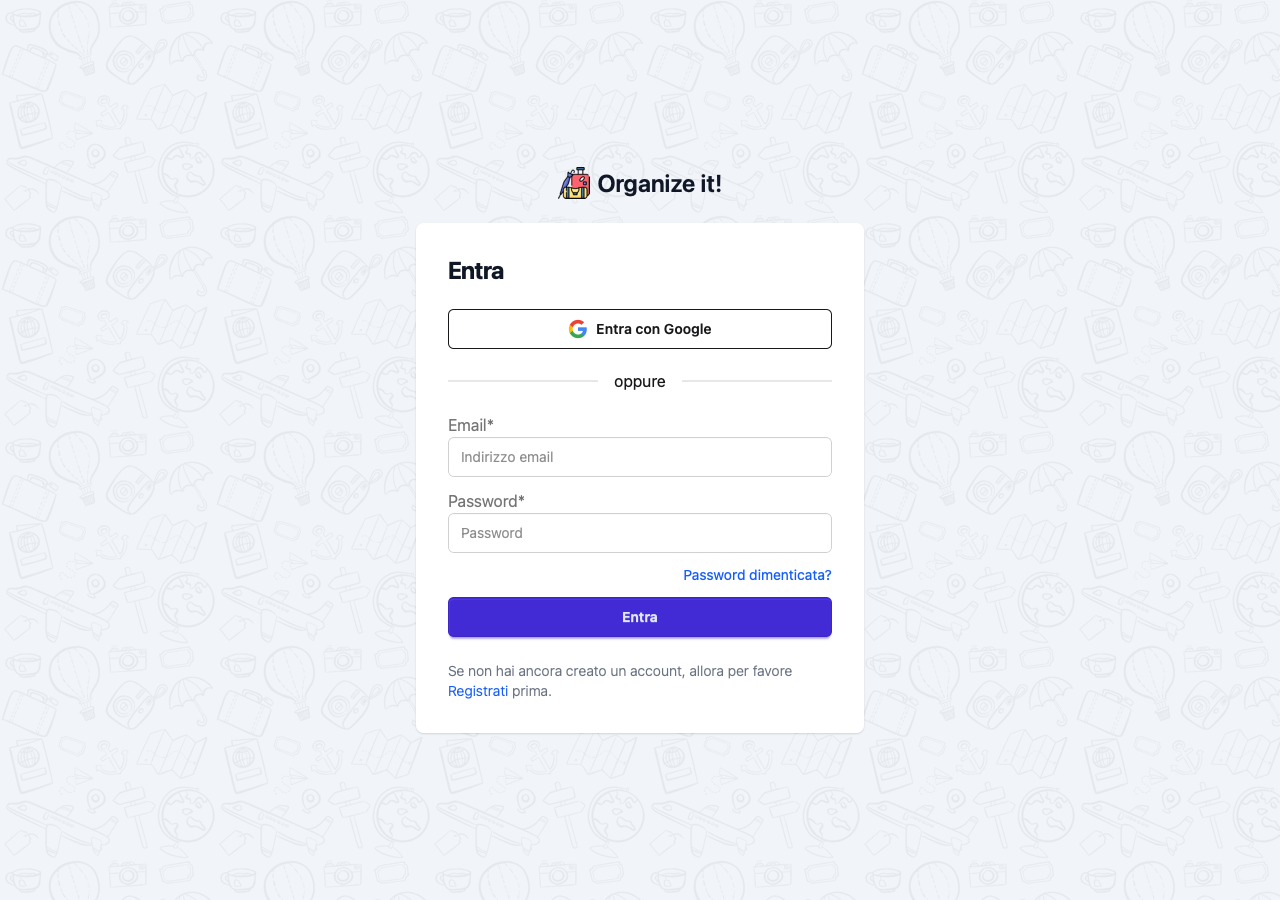
Sign in with Google
You can also skip the form and use Sign in with Google on the login and signup pages. Google's verified email is trusted, so no separate email verification is needed. If you already have an email/password account with the same address, the Google login links to it automatically.
Step 2: Create Your First Trip
- Click Create a new trip
- Fill in the details:
- Trip name (e.g., "Rome Weekend")
- Destination (e.g., "Rome, Italy")
- Start date
- End date
- Optional: Add a cover image or search Unsplash
- Click Save
Days will be automatically created for each date in your trip!
Two ways to create a trip
If you have your own AI API key configured, Create a new trip opens a menu with two options:
- Standard setup — the single form described above
- Guided setup — a three-step wizard that handles multi-stage trips, drafts a day-by-day itinerary with AI and searches accommodation for each stage
Pick the guided setup for a trip you haven't planned yet. See the Guided Setup guide.
Getting a free AI key
All AI features — including the guided setup — need your own API key. Both supported providers have a free tier:
- Google Gemini — create a key at aistudio.google.com/apikey
- Mistral AI — create a key at console.mistral.ai/api-keys
Paste the key into Account Settings → AI suggestions. Step-by-step instructions are in the AI Suggestions guide.
Step 3: Add a Stay
- Navigate to your trip
- Click on a day
- Click Add Stay
- Enter accommodation details:
- Name (e.g., "Hotel Colosseo")
- Address
- Check-in time
- Check-out time
- Click Save
Tip
Stays can span multiple consecutive days. Just set the start and end days!
Step 4: Add Activities
- Click Add Experience
- Enter details:
- Name (e.g., "Visit Colosseum")
- Time
- Duration
- Location
- Notes
- Click Save
Enter the basics, then enrich
You only need a name and address to get started. Once saved, click Enrich on the stay or event card to auto-fill the website, phone number and opening hours from Google Places (requires a Google Places API key). See the Experiences guide for details.
Repeat for meals and other activities!
Step 5: Add Transportation
- Click Add Transfer
- Choose the transfer type:
- Arrival - Getting to your first stay
- Departure - Leaving your last stay
- Fill in details:
- Transport mode (flight, train, car, etc.)
- Departure and arrival times
- Notes (confirmation number, seat, etc.)
- Click Save
Step 6: View Your Itinerary
Your trip is now organized! You can:
- View all events in a timeline
- See events organized by day
- Click on any event to view full details
- Edit or delete events as needed
- Mark favorite trips with a star
What's Next?
Now that you have your first trip set up, explore:
- Your First Trip Tutorial - A detailed walkthrough
- User Guide - In-depth documentation
- FAQ - Common questions
Tips & Tricks
Use Google Places
Enable Google Places API to auto-fill restaurant and attraction details
Unsplash Integration
Search Unsplash for beautiful cover images directly from the trip form
Trip Statuses
Trips automatically update their status based on dates: - Not Started - Future trips - Impending - Starting within 30 days - In Progress - Currently happening - Completed - Past trips - Archived - Manually archived
Unpaired Events
You can create events without assigning them to a day. They'll appear in the "Unpaired Events" section and can be assigned later.
Need Help?
- Check the FAQ for common questions
- Read the detailed User Guide
- Report issues on GitHub
Happy planning! ✈️